Adding/Updating Savings Calculator
The default savings calculator when launching a word press site is taken from Test Office. You need to update the savings calculator from the OMS by following the following steps.
-
Log into the OMS as Admin or IamKingKong and proceed to log as office
-
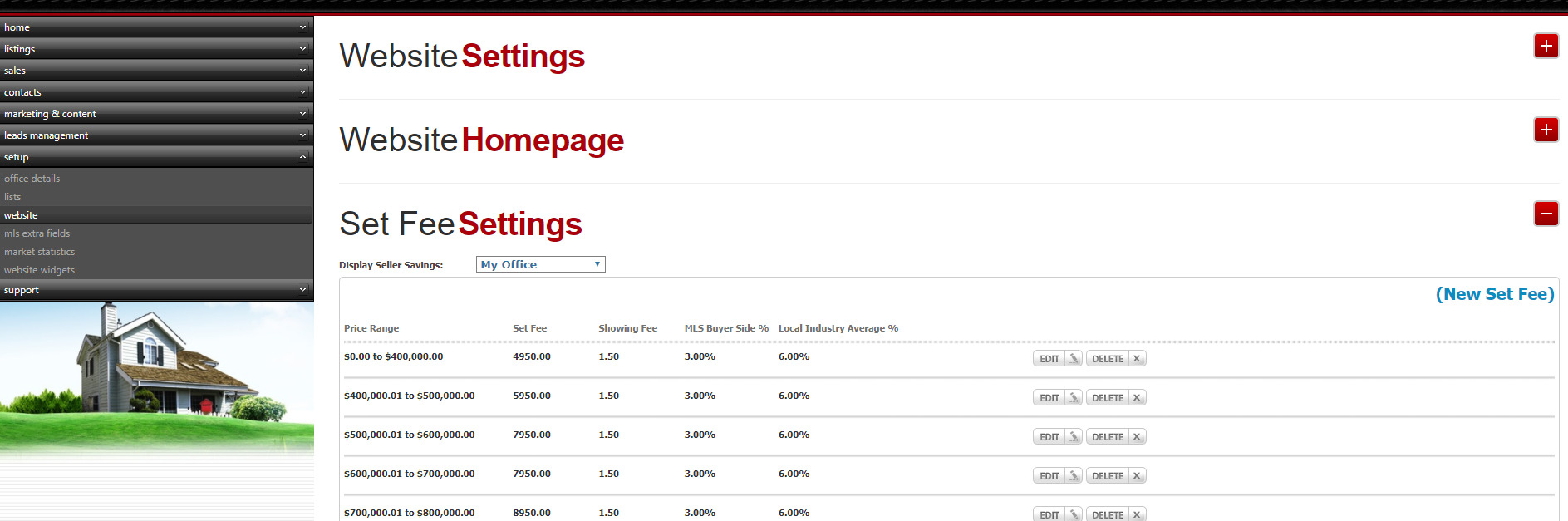
Go to Setup/Website and expand the Set Fee Settings
-
Make sure that the Set Fee is completed (Confirm with Office if not completed if they would like to have the savings calculator on their website). If completed continue, if not go to How to Setup Set Fees in OMS;
-
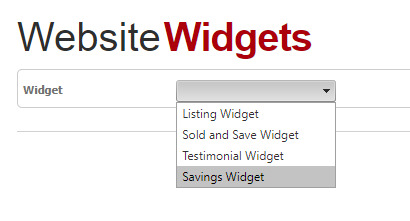
Go to 'Website Widgets'
-
From the Widget drop down menu, select 'Savings Widget'
-
Look at the Office ID and copy. (In the below example it is "783")

-
Copy the following code into the 'Savings Calculator' page and ONLY changing the Office ID (Highlighted in yellow below):
<img class="size-full wp-image-542 aligncenter" src="http://husfranchisesite-images.s3.amazonaws.com/Calculator.jpg" alt="" width="998" height="200" />

During the past four decades, Help-U-Sell Real Estate offices nationwide have saved sellers millions of dollars in commissions, while providing the same service as traditional real estate brokers. Find out how much you could save by selling your home with Help-U-Sell Real Estate.

Simply type in how much you think your home is worth and click the button on the right to see your potential savings!

<div id="hussavings-widget-container" class="783_1" style="overflow: hidden;"></div>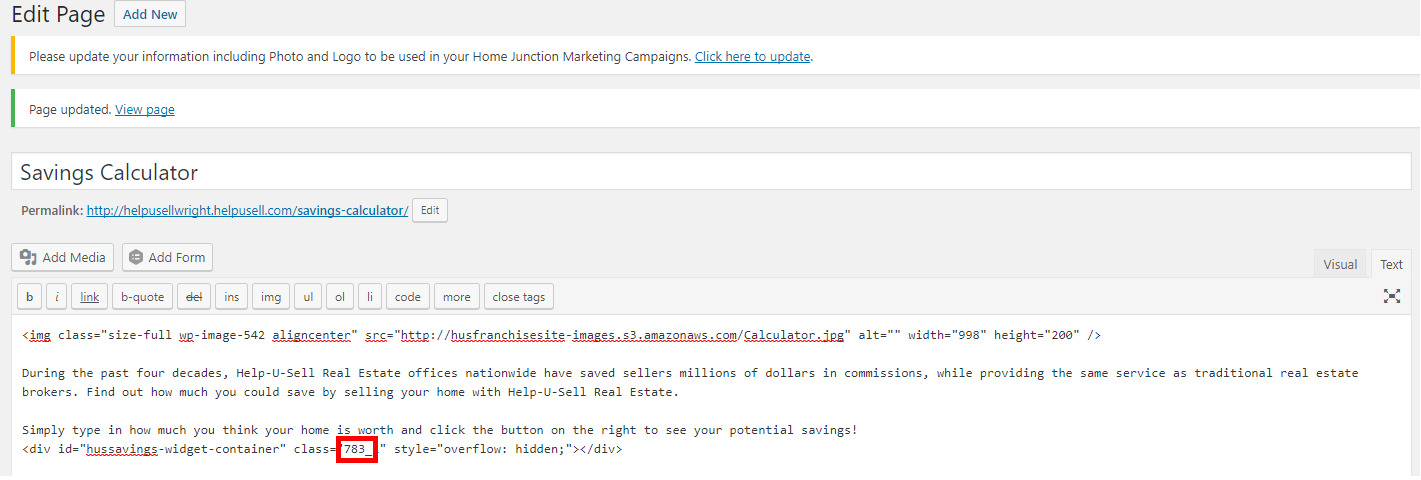
-
Finally confirm the following script is in the footer section:
<script src="https://oms.helpusell.com/widgets/HUSSAVINGSWIDGET.js?v=3" type="text/javascript"></script>
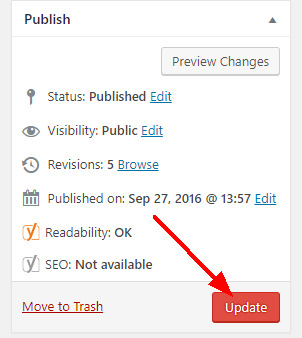
Remember to hit Update