Configure Drip Email Campaigns
To launch a new campaign, expand the 'Configure Campaigns' section by clicking on the + icon to the right of the header.
-
If this is the first time you are using the Drip Email Campaigns module in the OMS, you will be prompted to accept the 'Terms of Use' before you can continue. We strictly enforce the Federal Trade Commission's CAN-SPAM Act which is a law that sets the rules for commercial email, establishes requirements for commercial messages, gives recipients the right to have you stop emailing them, and spells out tough penalties for violations. To read more about the CAN-SPAM Act click here.
-
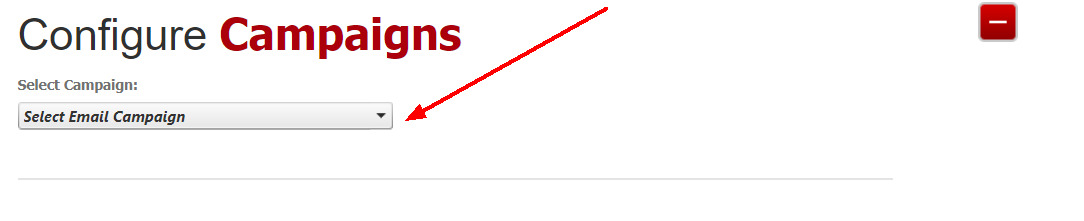
Select a campaign to use from the drip down list. Please be sure that you have customized the campaigns and are happy with the messaging. You cannot edit campaigns or emails in this section. See 'Create Drip Email Campaigns' for instructions on how to edit Campaigns and emails.
-
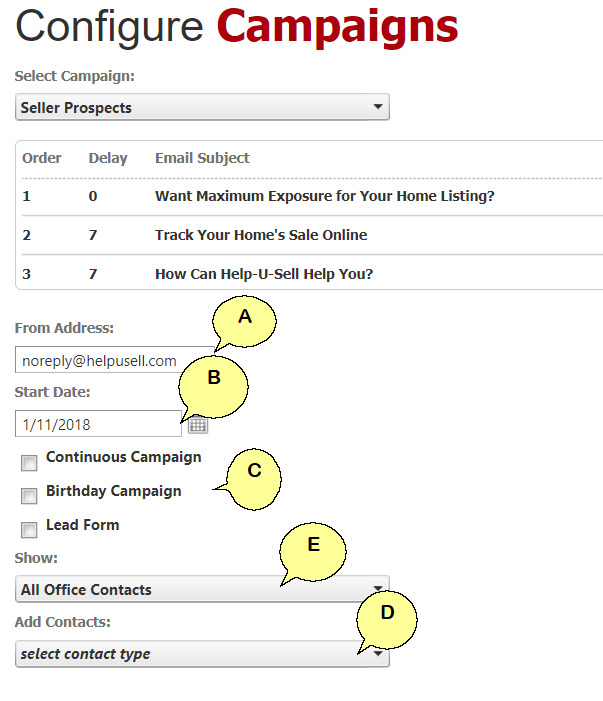
You will see the list of emails that form part of the Campaign selected. You should change the default 'From Address' to an email address you would like to receive responses on (A). Select when you want to start the campaign (B), and choose which type of campaign you are creating (C).
Continues Campaign - This campaign never ends and as new contacts are added to the OMS with the type you are targeting they will automatically be added to the campaign and start with the first email.
Birthday Campaign - This is another form of a continues campaign that will email contacts on their birthdays.
Lead Form Campaign - This campaign allows you to attach a Drip Email Campaign to a landing page on your website which triggers once a user completes the contact form on that particular landing page.
Next select the Contact Types you want to add to the campaign (D) and whether you want to add all office contacts or just your own (E).
-
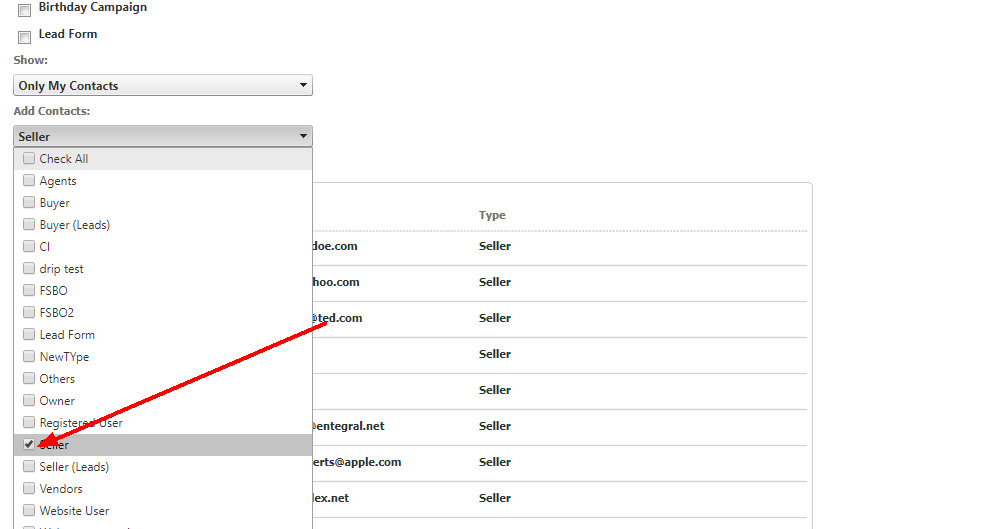
When selecting contacts, you have the option to add only one type of contact or several types by checking the boxes next to the types you want to add.
-
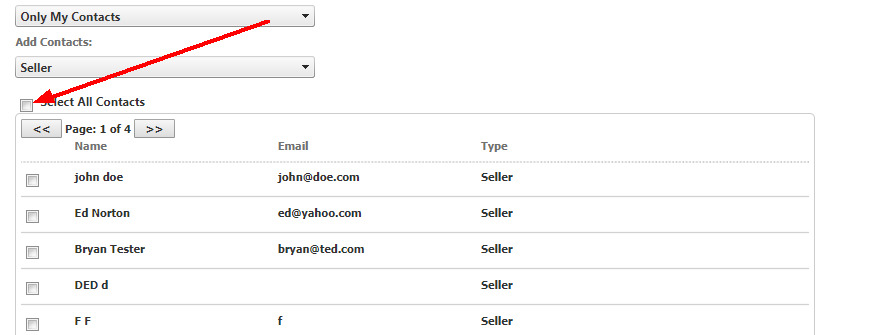
To add the contacts in the selected type to the campaign, you can either 'select all' or pick them one at a time.
-
Click 'Save' to complete the Campaign Setup