Creating Around Postcards
You can customize one of the 6 available cards or upload your own custom card.
To create a postcard to be used for automated Arounds, follow these simple steps.
-
Log into the OMS
-
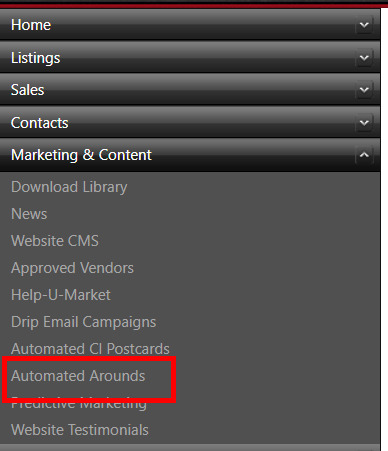
Go to 'Marketing and Content' on the left navigation and select Automated Arounds
-
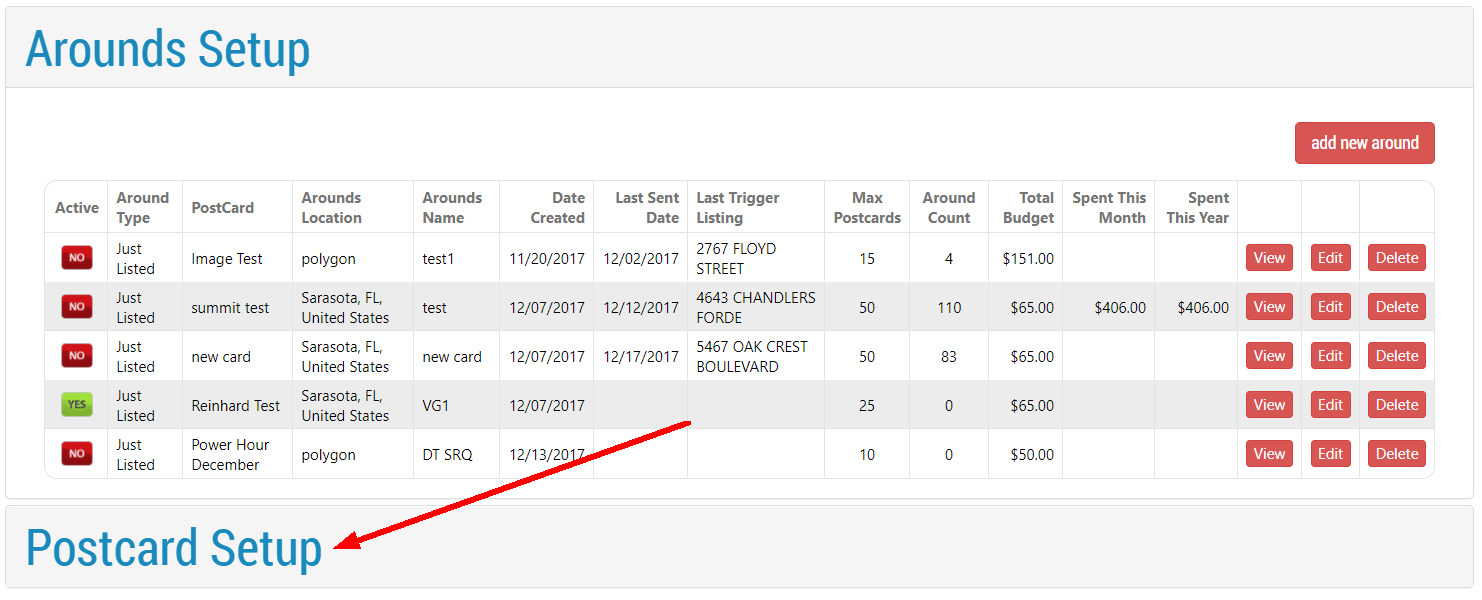
Go to the second menu option 'Post Card Setup'
-
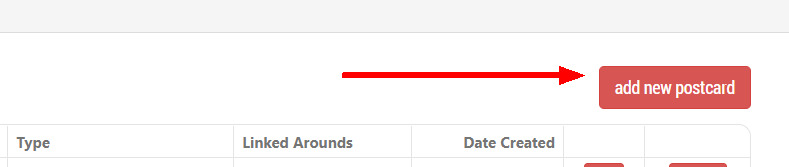
Click on the 'Add New Postcard' button on the right
-
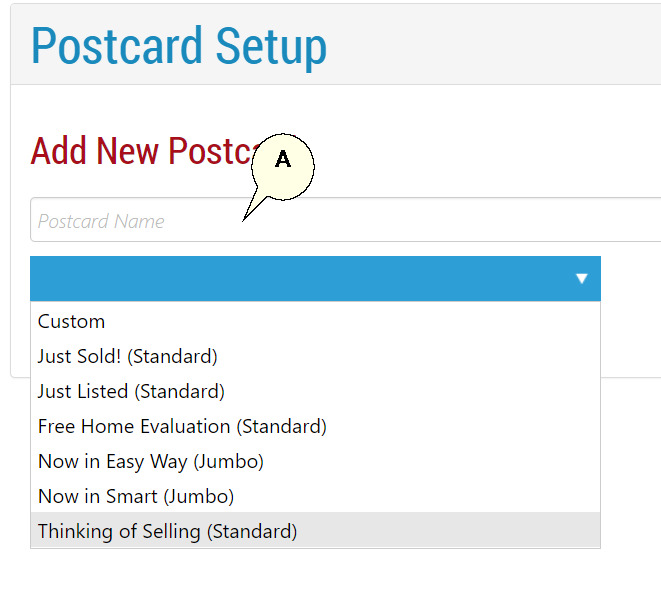
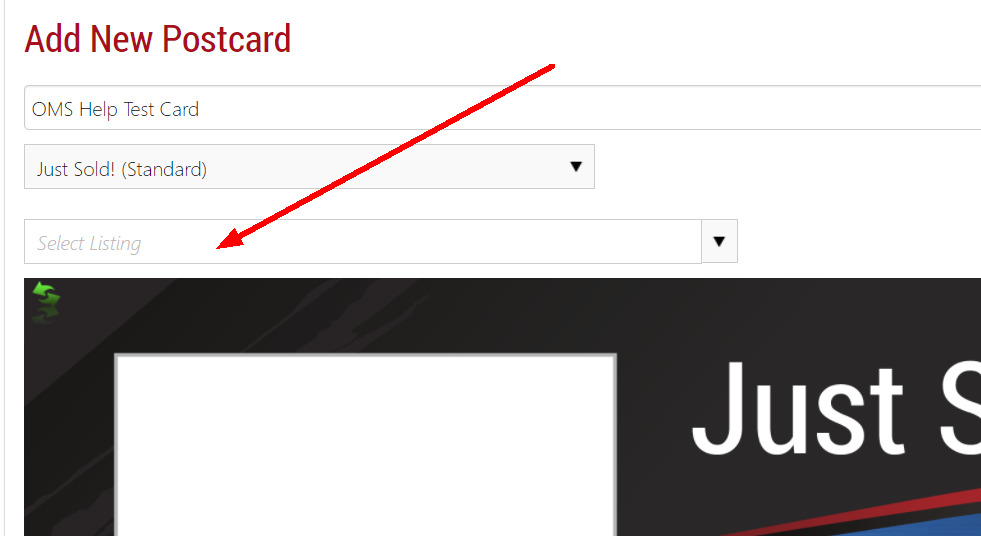
Select the postcard you would like to use. Also name your postcard (A).
-
Depending on the postcard selected, you will have options available to customize the card.
-
On the Just Listed or Just Sold cards there will be a drop down menu item to select the listing in your OMS to use as the featured listing or 'Sold and Saved'.
-
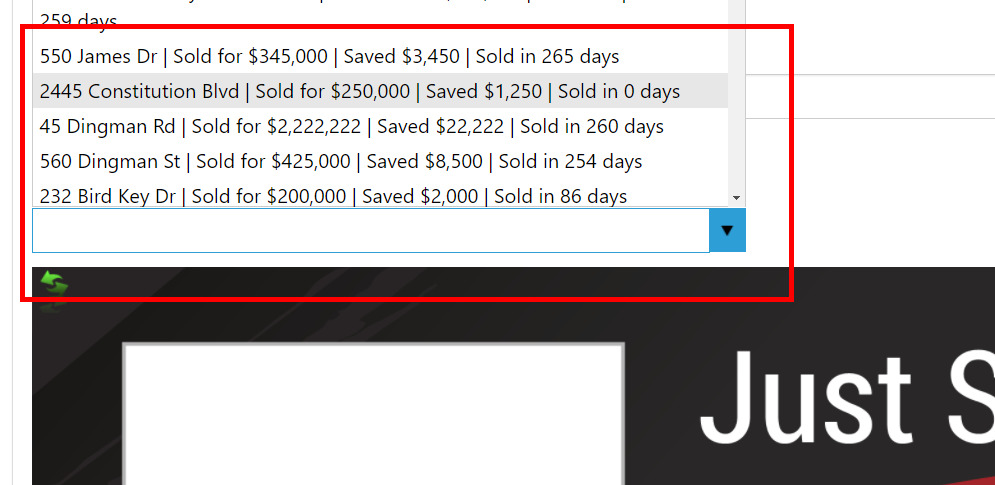
The drop down list will also display the savings and days on market for the listing to help with the selection options.
-
Complete the customization by uploading testimonial images and changing the text fields where available for edit.
Note: To see which fields can be edited, just click on the text. If the can be edited, a blue box will appear around the area.
-
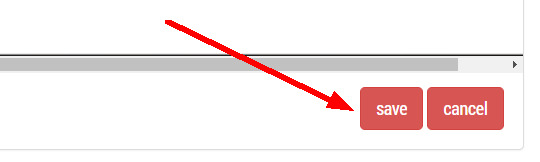
Once satisfied with your card edits, click the 'Save' button at the bottom right of the postcard design area.
-
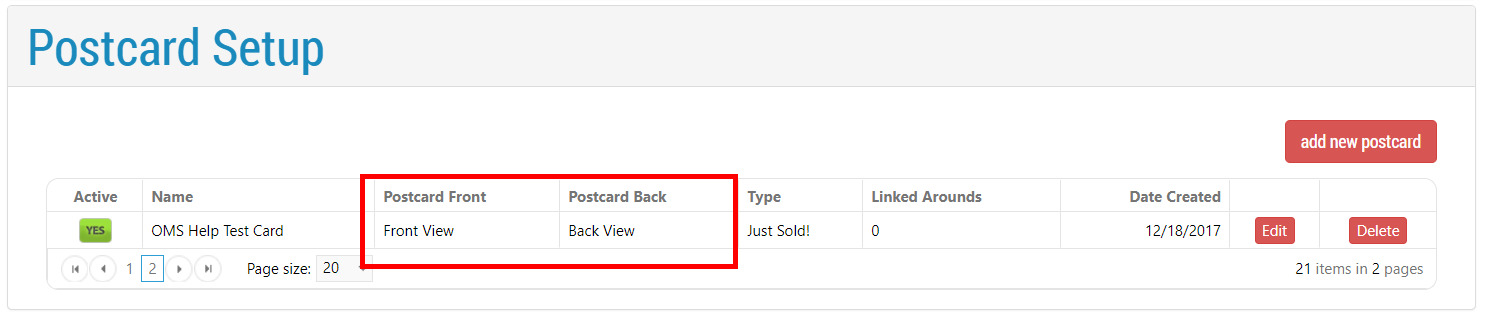
You will see your card listed in the Postcard Setup screen which will load after your hit the 'Save' button.
-
Make sure to click the 'Front View' and 'Back View' to preview the card. These are the actually PDF's that will be forwarded to the printer.
Adding a Custom Postcard
You can add a custom card by contacting Help-U-Sell Support at support@helpusell.com. If you have a custom card aready please forward to support@helpusell.com. Our graphics department can also create a card for you.
Next: Setup Target Market