Importing Contacts
You can import contacts from a .txt, .csv or Excel file. The OMS will allow you to choose which columns in your file to import, as well as assign them to an agent in your office.
To start importing contacts, click on the 'Contacts' menu item on the left navigation bar.
-
Go to 'My Contacts'
-
Click on the 'Import Contacts' button to the right (A).

-
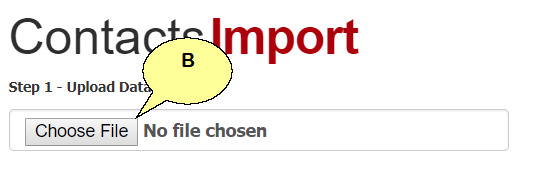
On the 'Contacts Import' screen click on the 'Choose File' button (B)
-
Pick the contacts file from your computer you would like to start importing.
-
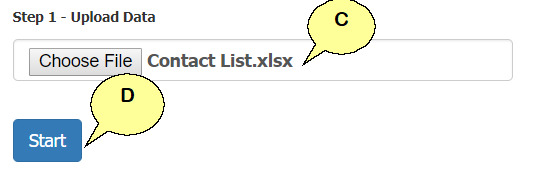
The file name will appear next to the button (C), click the blue 'Start' button to start the column mapping process (D).
-
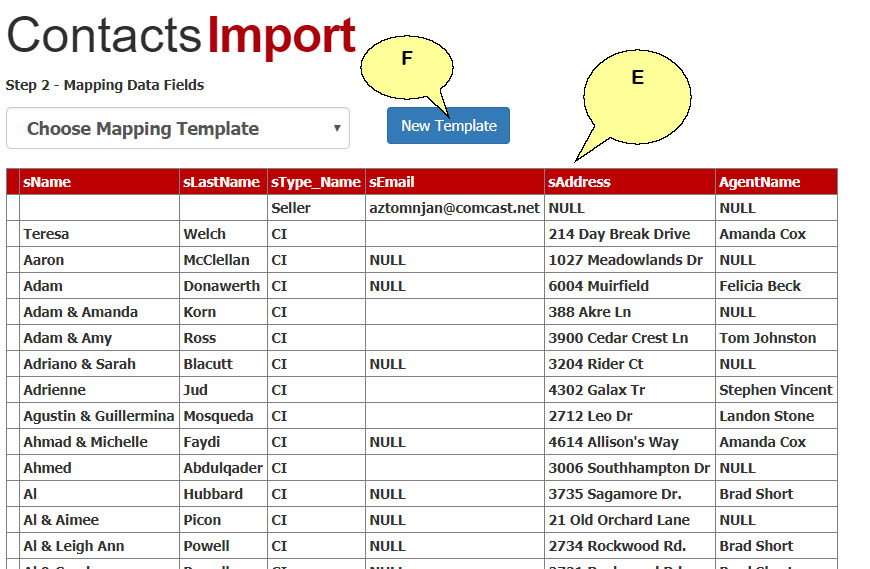
Next you will have to Map the column from your source file to that of out database. We will also display the column and data currently contained in the source file (E). To start the Mapping process, click the 'New Template' button (F).
-
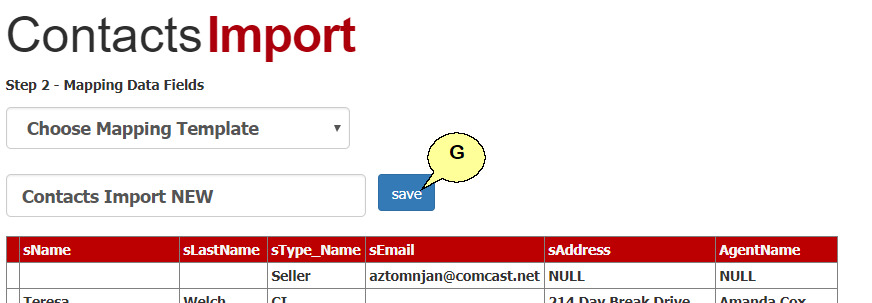
Next you will be asked to name the template. This is to allow you to save your mappings in the event you would like to import another file from the same source later. Click the 'Save' button (G).
-
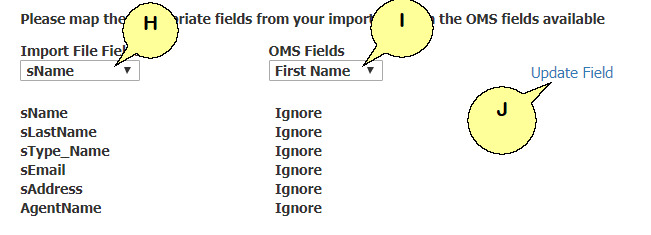
Next you will map the source file headers/columns to the OMS. Pick the field you want to map from the source file (H), then select the field you want to map to in the OMS (I).
-
Click 'Update Field' (J), to save the mapping. Repeat these steps for all column you would like to map.
-
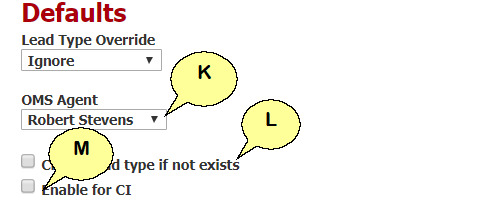
Next select which agent these contacts should be linked to (K). If you have a lead type in your file that does not exist in the OMS yet, you can check the 'create lead type if not exist' box to create that lead type in the OMS (L). To enable these contacts for CI distribution, check the 'Enable for CI' box (M).
-
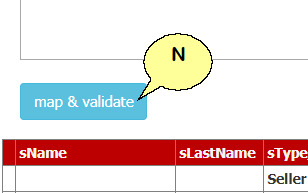
To start the mapping and inport process, click the 'Map & Validate' button (N).
-
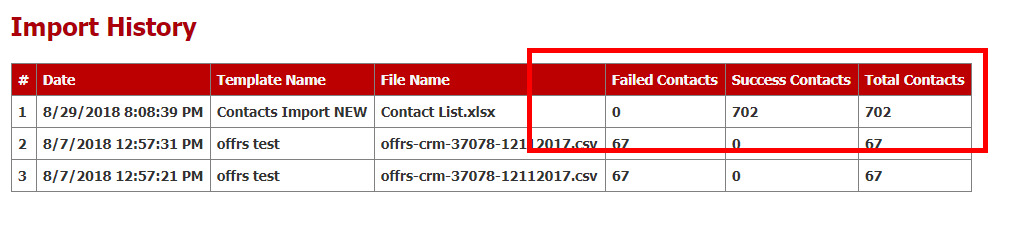
Any error in the import process will highlight the row as red. Once your import in successful it will display the file with the count totals of imported contacts and failed contacts in the 'Import History' section.