Sales Module - Reporting a Closing
All closings must be reported in the OMS within 3 days after closing. This includes buyer side transactions. In some cases where the MLS data feed provide sold data, we will automatically update the listings status to 'Close'. If your MLS does not provide sold data, you will have to manually change the status to sold.
You report a transaction by either being prompted to the Capture Transaction section when you change the status of the listing to 'close' or by going to the Sales module in the OMS and clicking on 'Report a Transaction'.
When the page loads you will have three options:
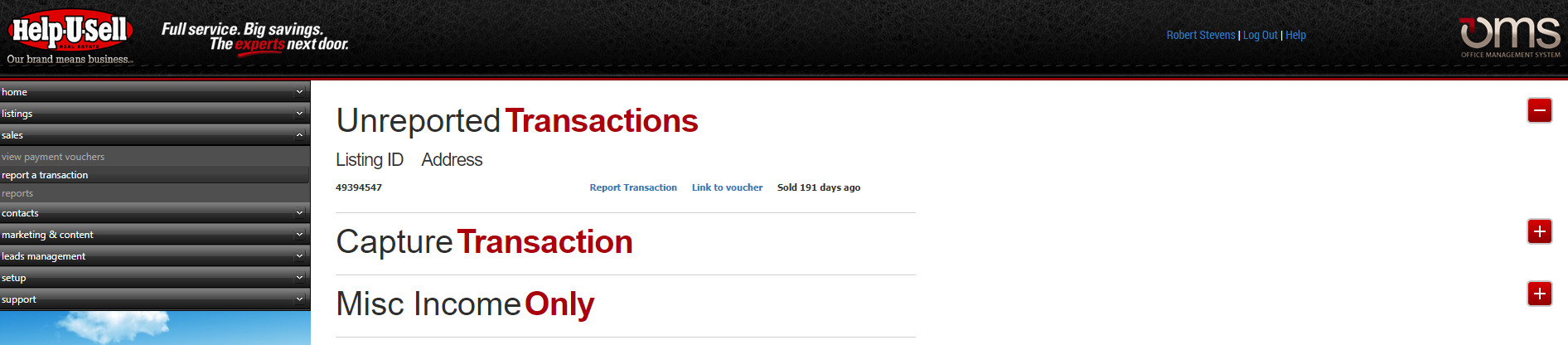
Unreported Transactions
An unreported transaction is a transaction that we have as closed but do not have a voucher attached to the listing. If your MLS provide us with Sold data, we will automatically change the status of the listing to Sold. In this event the listing will come up under Unreported Transactions. You can then click on the link 'Report Transaction' and complete the reporting process. If you have already reported a transaction that shows up on this list, it could be that there exist a duplicate listing in the database for this listing. Please contact Help-U-Sell Accounting at accounting@helpusell.com or 941-951-7707 ext 5002 to clear this listing.
Capture Transaction
There are two types of transactions you can capture;
Seller Listing Side
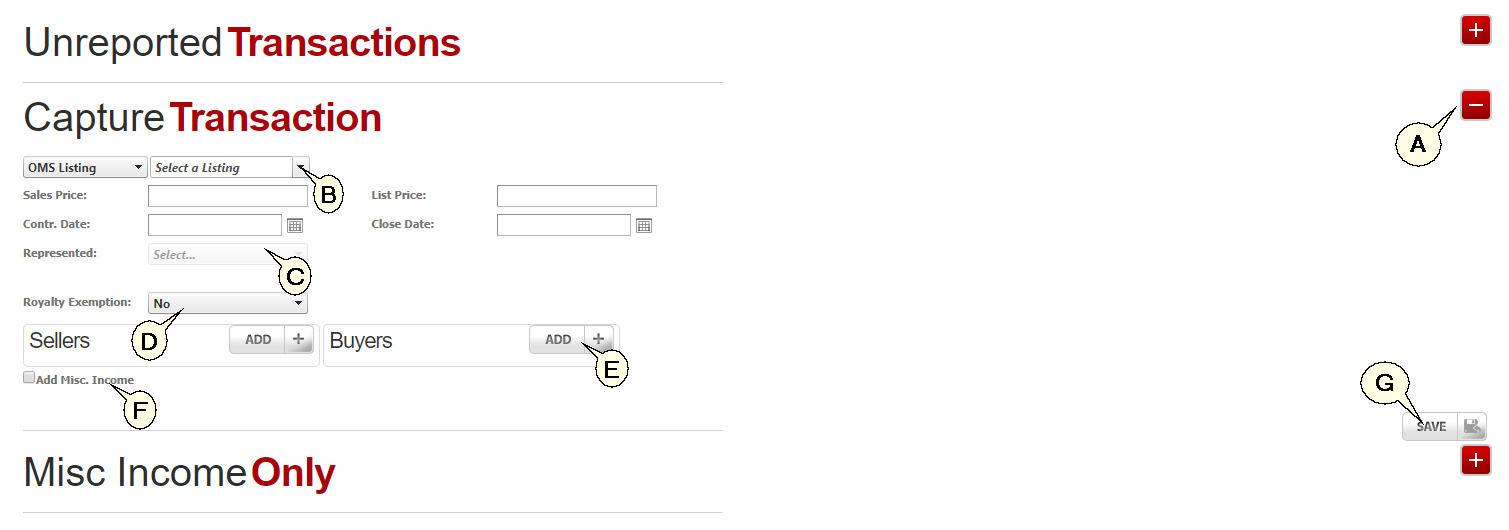
A) Expand the Capture Transaction section by clicking on the + icon to the right
B) When reporting a Seller side transaction, make sure the drop down (B) is selected as 'OMS Listing' and select the listing address from the drop down box just to the right.
C) Once listing is selected the OMS will complete the list price and added the seller information if it was entered into the listing prior to closing out the transaction. Now complete the rest of the information such as the Sales Price, Contract Date, Close Date and who you represented in this transaction, the seller, the buyer or both parties.
D) The Royalty Exemption is used when the broker sells their own personal property. Each office have one exemption per calendar year. Once used it will not be available again for the remainder of the year. Closing Disclosures must accompany the Voucher showing $0.00 Royalty due to proof ownership of exempt transaction.
E) You can add the Seller and Buyer information as well. This is not a required field.
F) If you had other income related to the transaction check the 'Add Misc. Income' box to add other income related to the transaction.
G) Once fields are complete hit the 'Save' button
Note: What if the seller/listing side transaction you are trying to report is not available from the Listing Dropdown?
In this case, report the seller side transaction the same as you would a buyer side transaction, and when you get to the 'represented' drop down, select 'seller' or 'both'
Buyer Side Transaction
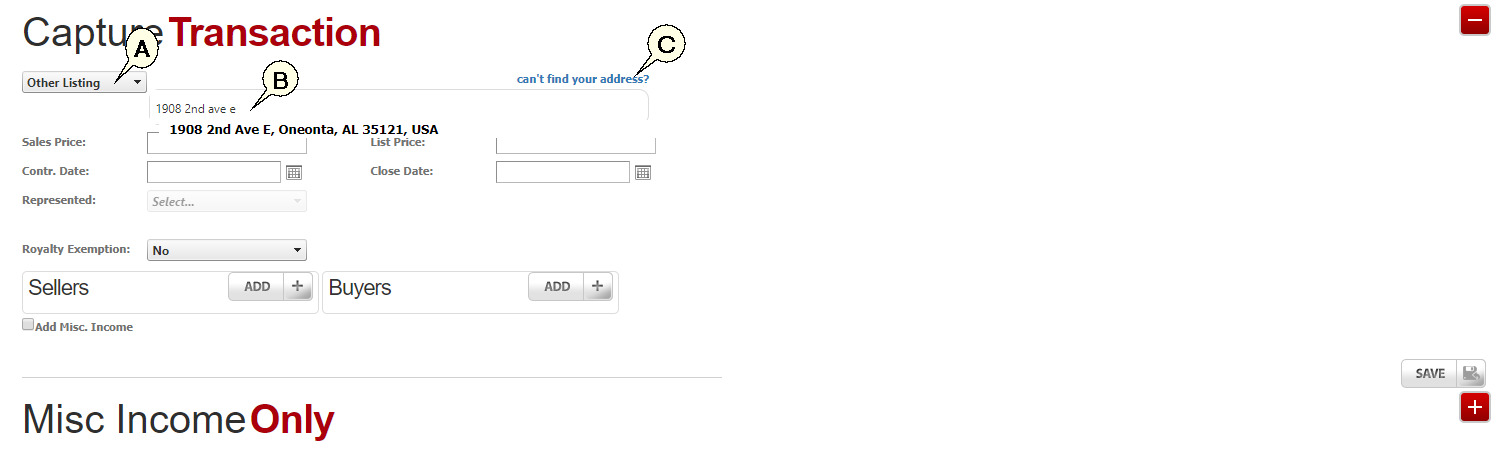
A) Change the drop down from 'OMS Listing' to 'Other Listing'
B) This will open a text field just to the right. Start typing in the address of the listing you are reporting. If the address does not auto populate. Click on 'can't find your address?' link and complete the fields manually.
C) Complete the rest of the fields as with reporting a Seller Transaction
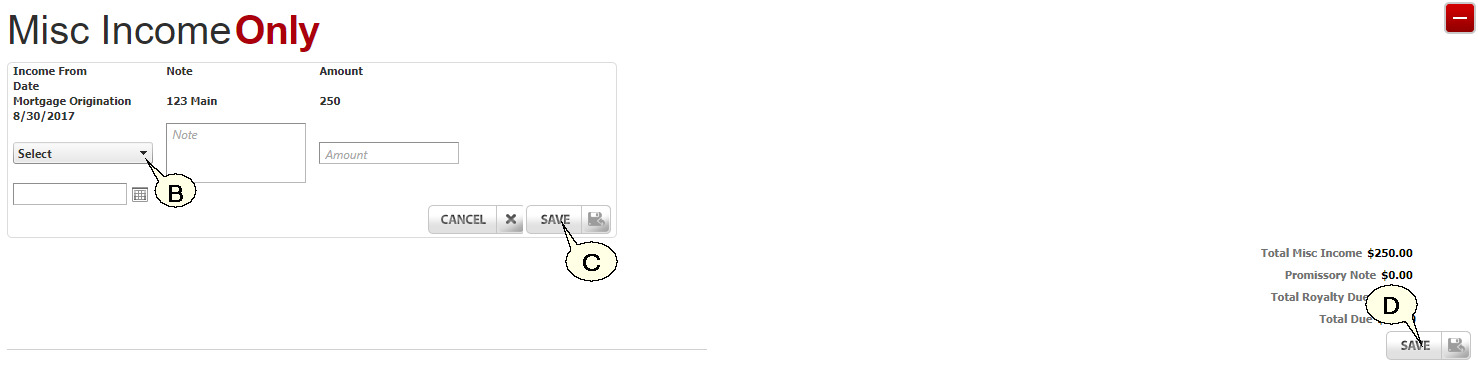
Reporting Misc Income Only
To report only Miscellaneous Income, expand the Misc Income Only section by clicking on the '+' icon to the right of the text.
A) Click on the 'Add' button which will open editable fields.
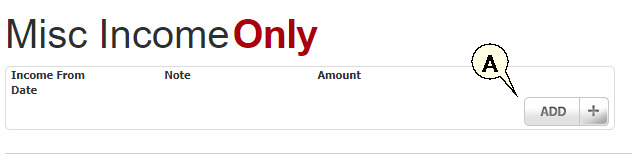
B) Complete the available fields
C) Hit the 'Save' button inside the form to complete the entry. You can add multiple entries.
D) When complete, hit the 'Save' button to the bottom right of the page.
The Payment Voucher
Once you have reported a transaction or Misc Income, a payment voucher will be generated. Please print this voucher and mail in with your check to:
Help-U-Sell Real Estate
240 N. Washington Blvd. Suite 700
Sarasota FL, 34236
Vouchers are also saved in the Sales module of the OMS under the 'Payment Vouchers' sub-menu (A)
