View My Listings
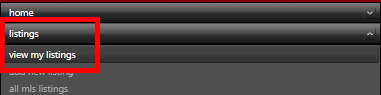
To view your current as past listings in the OMS go to the 'Listings' menu item on the right and select 'View My Listings' from the dropdown
The default view will display all your listings sorted by the Help-U-Sell Property ID
Note: The default display is on your listings only - the person who logged on. You can change this to view 'All Office Listings' from the drop down selection in the top right (A)

(B) The first column determines where the listing is being updated. There are two possible sources, manually managed by the broker/agent will have a red 'OMS' icon or autocratically updated from the MLS will have a blue 'MLS' icon. Only listings with MLS IDs can be updated from the MLS. (Note: When you enter a listings and make a manual change to the listing, it will change to a manually updated listings. If you want to continue with MLS updates click on the red 'OMS' icon to change it back to a 'MLS' updated listing.)
(C) This column handles whether a listing is featured on the Older none WordPress templates, as well as when you use the listing widget. To change a listing between featured or not featured, click on the red 'no' icon to changes it to a green 'YES' icon.
(D) You can sort your listings by Type.
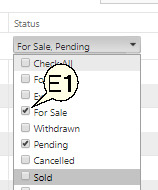
(E) Sort Listings by Status. You can include multiple Status types by checking the check boxes (E1) to the left of the Status.
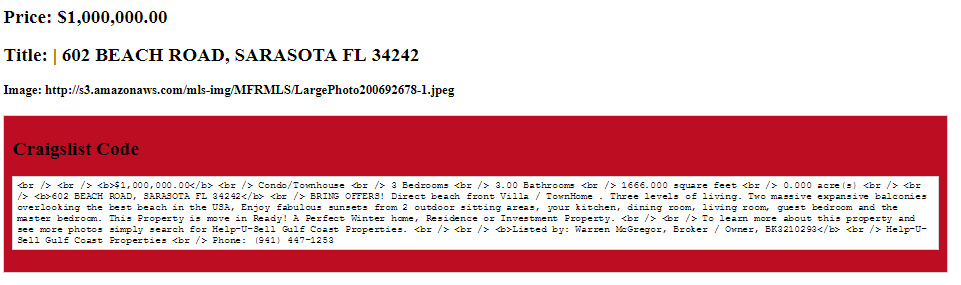
(F) You can create a Craigslist Snippet of your listing by clicking on the blue 'C' Icon. If the Icon is grayed out, you are missing one of the required fields in the listing to create the snipped. Please edit the listings and make sure all primary fields are completed.
Snippet Example
Also see: Merging Duplicate Listings