Listing Details
The Listings details sub section is where the primary listing details are displayed and edited if the listing is a pocket listing or set to update from OMS. If the listing imported from the MLS all the information on this section will be completed with the exception of the 'Short Description'.
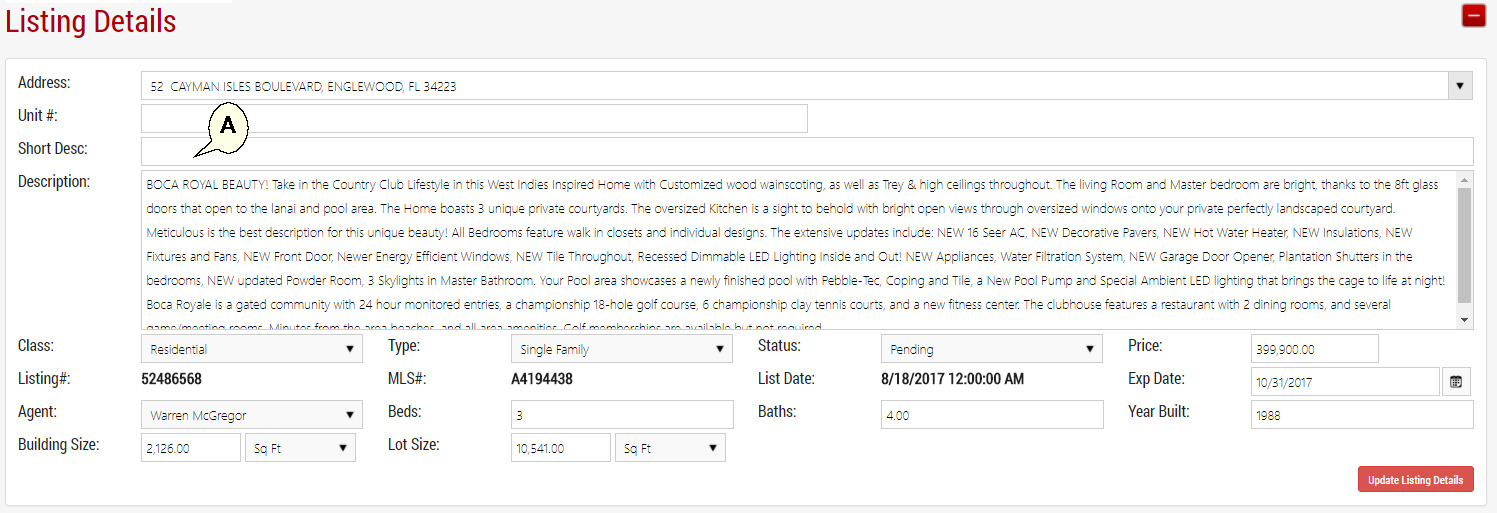
(A) Short Description: If you are on an older none WordPress template or on the Listing Widgets the Short Description is used as a headline on the listing display below the Address.
Linking a duplicate Non-MLS listing with a MLS Listing
(B) The MLS# will be imported with the listing. You cannot edit this number. If the listing was a pocket listing (Manually Entered), The MLS field will have the text 'Link to MLS' in blue.

If this listing is loaded in the MLS later, the MLS listing will also import to your OMS resulting in a duplicate listing, one with a MLS# and one without. To link these two listings;
Click on the blue 'Link to MLS' text (B).
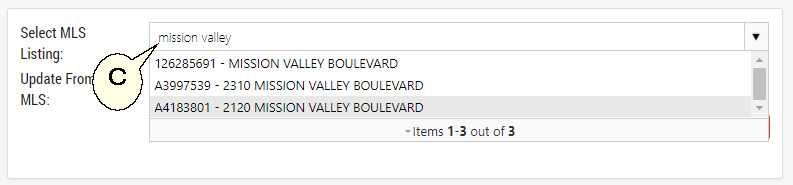
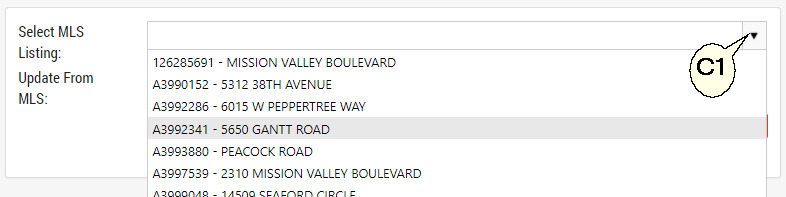
Start typing the MLS# or Address to filter the list (C), or select from the drop down the MLS Listing (C1).
Select whether you want this listing to updated from MLS moving forward or if you want to continue manually updating the listing information (D).
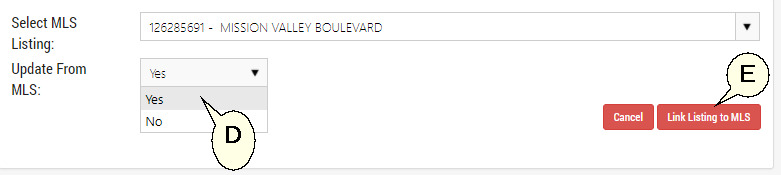
To complete the linking process hit the 'Link Listing to MLS' button on the bottom right (E).
Adding Seller Details to Listing
You can also add the Seller details to the listing. This will create a Seller contact linked to the listing in your Contacts Module. The seller can then be provided with a login to view Listing Activity (None WordPress Templates only)

Next Topic: Listing Media