Create Drip Email Campaigns
To create and activate drip emails campaigns, log into the OMS at oms.helpusell.com.
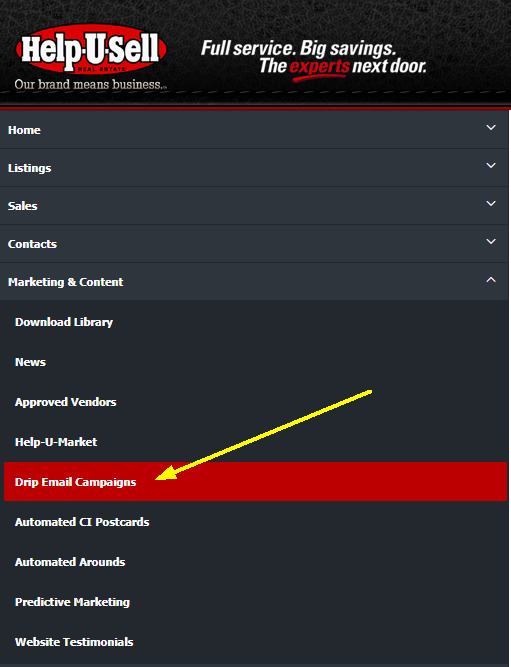
Click on the 'Marketing & Content' menu item on the left navigation.
Then click on 'Drip Email Campaigns'.
Drip Emails consist of four sections:
-
Create Drip Email Campaigns
Before you configure a drip email campaign, you have to develop the campaign and message, decide how many emails a campaign consists of, and how many days apart each email is going to be from the previous.
To help you with creating campaigns and messaging, we have created more than a dozen starter campaigns, each with a unique message and purpose. You can add or remove from these starter campaigns or edit any one of the emails.
You can also start a brand new campaign from a blank template.
Getting Started
-
Open the 'Create Drip Email Campaigns' Section by clicking on the + icon to the right of the header
-
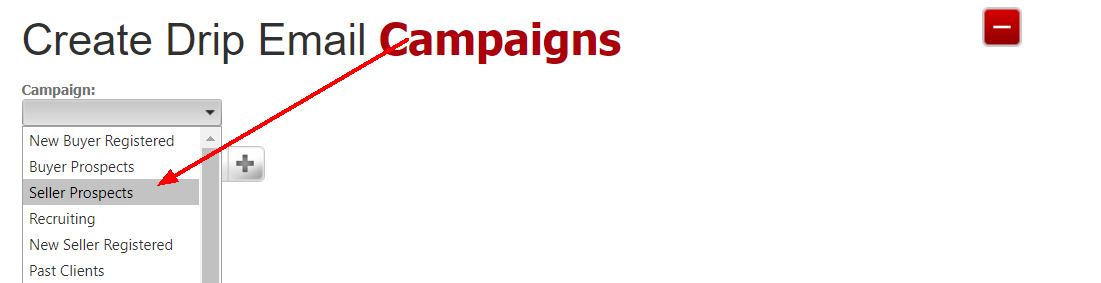
Select a starter campaign suited for your intended target list to view and edit the campaign.
-
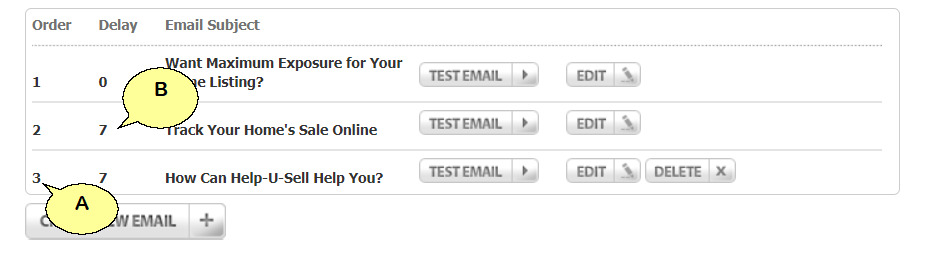
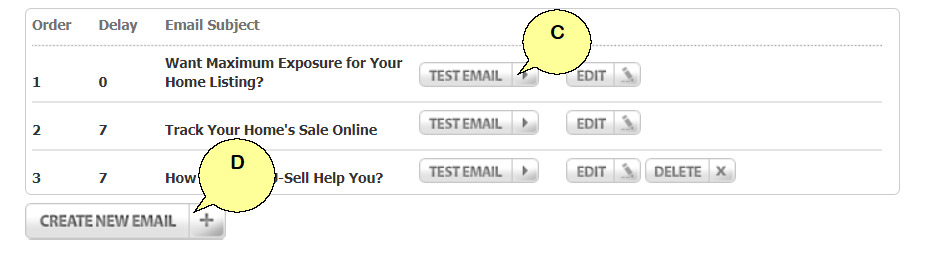
You will see the number of emails the campaign consists of (A) as well as how far apart they are scheduled (B). In the below example the second email will go out 7 days after the first, and the third email 7 days after the second.
You can test an email by clicking on the 'Test Email' button (C) or add more emails to the already created ones by clicking on the 'Create New Email' button (D).
-
To edit or view an email, click on the 'Edit' button.
-
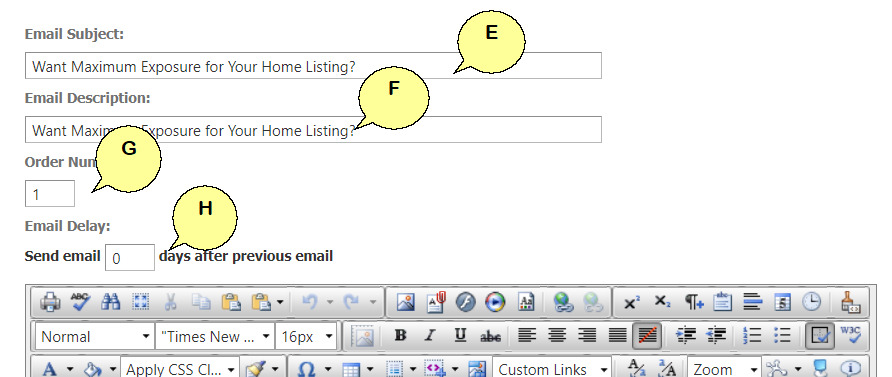
You can edit the Email Subject (E), the Email Description (F), rearrange the order (G) or adjust the Delay (H).
-
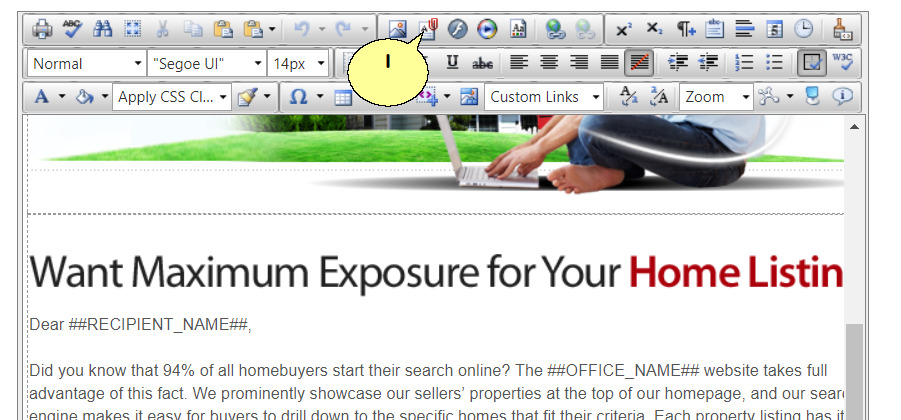
Using the editor tools you can edit the content of the email, or add links to documents for download (I).
-
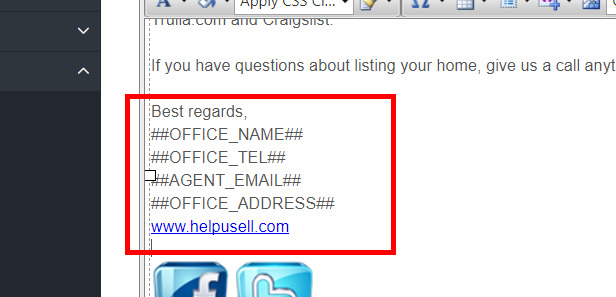
In sections where you see database labels between double hash tags we will automatically insert the relevant information as described between the hash tags.
-
If you like an email from another starter campaign you can copy the HTML from one email to another by using the HTML view option at the button of the editor.
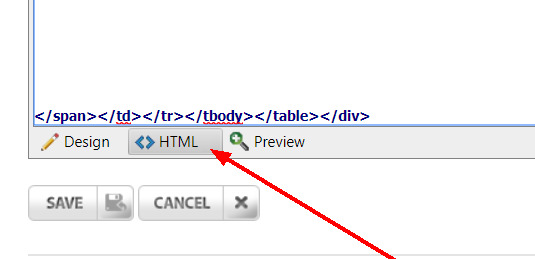
-
Remember to Save your work when you are done editing.
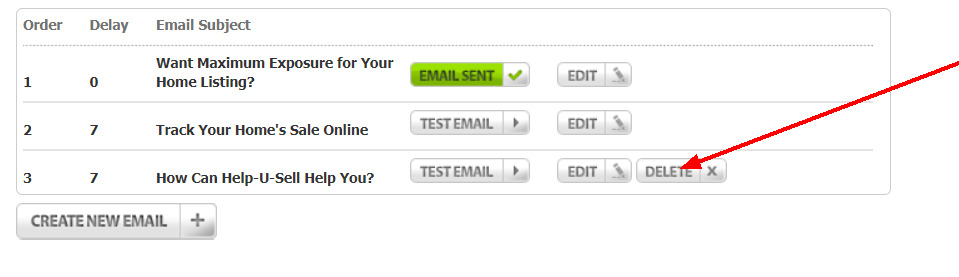
Note: When you edit a started campaign email you will notice a 'Delete' button appear next to the email list. If you want to reset to the original starter email, you can click on this 'Delete' button to remove the edits you made. This will not delete the email, just the changes you made. Any emails you added to the campaign will be deleted entirely when using the 'Delete' function. You cannot delete any of the Help-U-Sell started campaigns or emails. If you want to campaign or remove emails from the starter campaign, we suggest you start a new campaign and copy the HTML from the emails you like to create. For more information and support please contact us at support@helpusell.com