CI Postcards - Office Level
An Office Level CI card will send the same postcard to the entire Office Contacts marked as CI's.
To setup an Office Level CI card, follow these steps.
-
Log into the OMS as an Admin user.
-
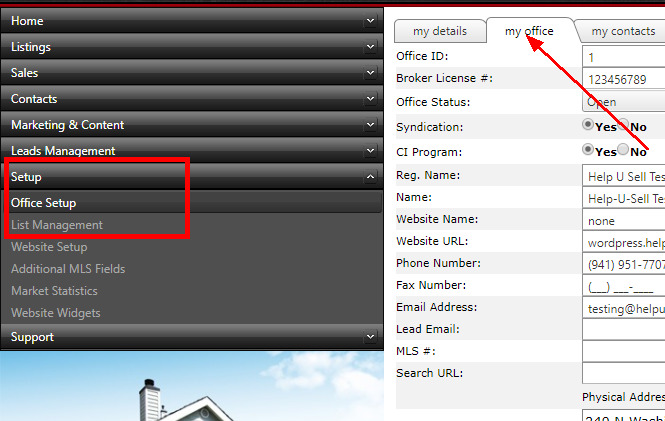
Go to 'Setup' on the left main navigation and then select 'Office Setup' from the sub-menu. Go to the 'My Office' Tab.
-
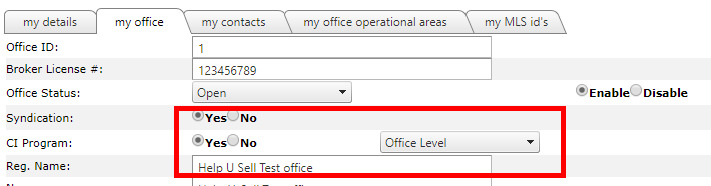
5th item from the top 'CI Program' change to 'Yes' and then select Office Level from the drop down to the right.
-
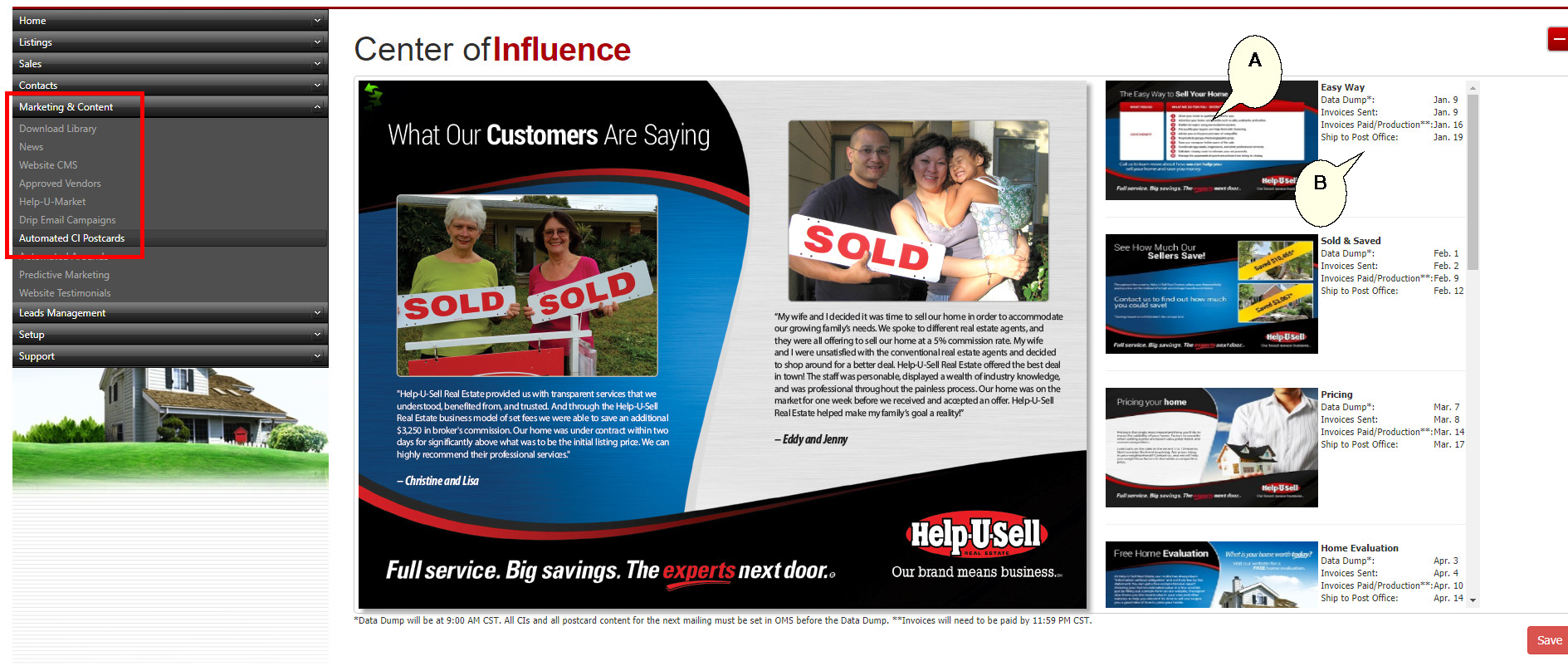
Next go to 'Marketing and Content' on the left Navigation and then select 'Automated CI Postcards'.
-
You will see a list of the 10 cards we send out every year (A). These cards will update and change from one year to the next.
-
On the right side of every card you will see when the Data Dump takes place. The Data Dump happens when the CI contact list and card edits are delivered to the printer, when invoices are mailed to the office, when payment needs to be received and final proofing be completed, and finally the date when the cards are shipped to the post office (B).
Note: You may have to scroll to the right to see the postcard information in number 4 above.
-
-
You have the ability to edit the reverse side of the cards. You do not have to change the reverse for every card, just one and we will use the same content on all cards going out.
If you choose to update or change the reverse side, all future cards will then have the updated information.
-
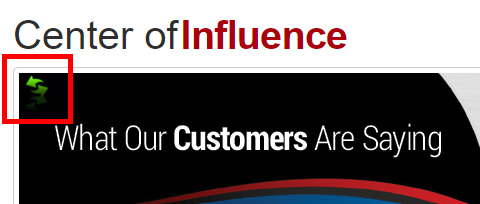
To edit a card, click on the green 'flip' icon towards the top left of the card.
-
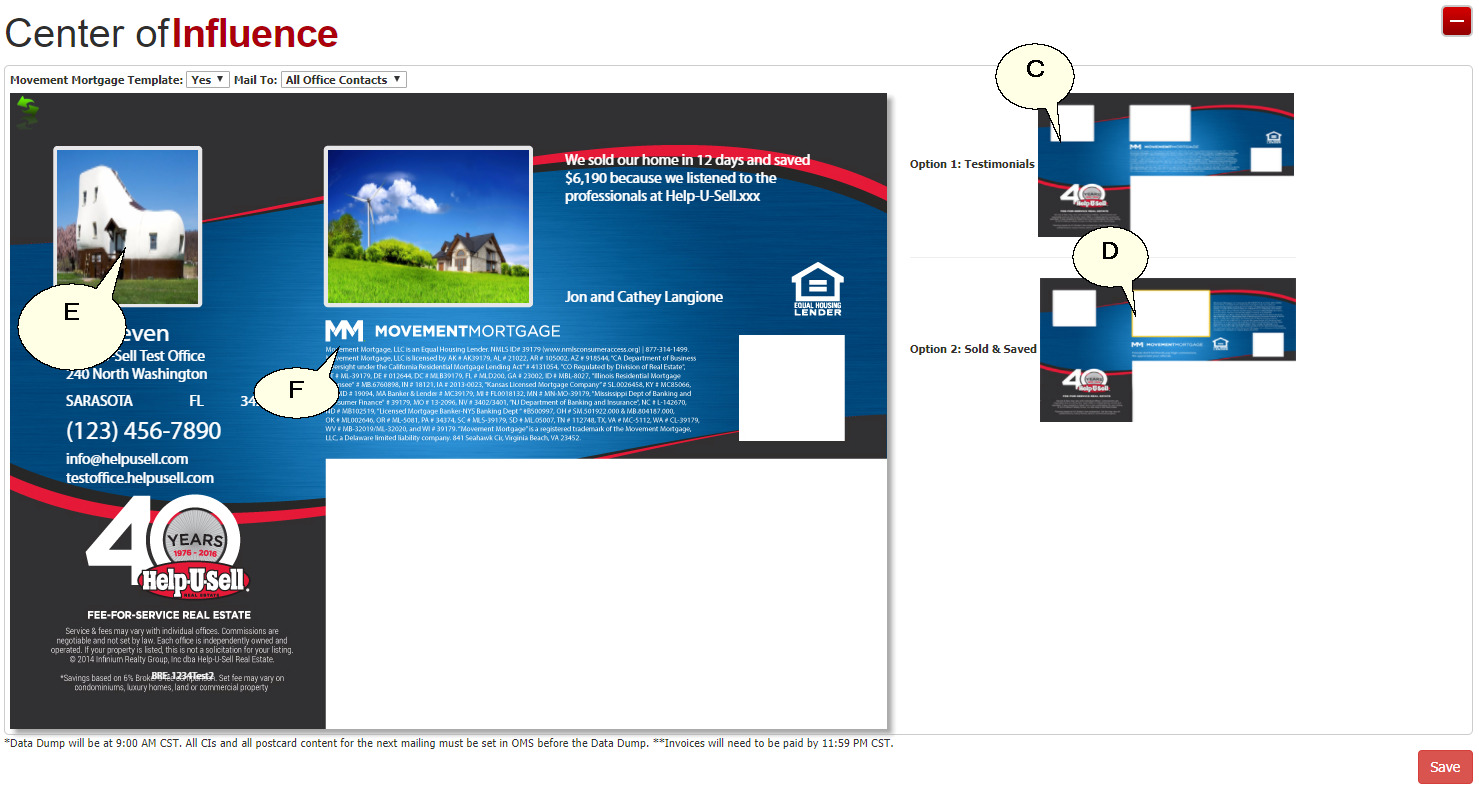
Once the card is flipped, you can choose between a Testimonial Reverse option (C), or a Sold and Saved option (D). For Testimonial options you can upload a testimonial picture and click into the box to the right of the picture to add the testimonial. For the Sold and Saved option we have created several Sold and Save pictures to choose from. You cannot upload your own as the design and text need to be exact for printing on the card. These Sold and Saved homes are real Help-U-Sell Office's homes and savings. You can also update the Agent image or add an Office image (E).
-
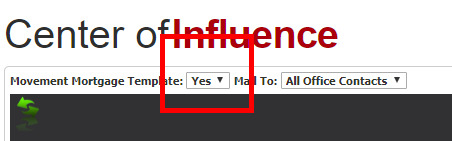
All the Office or Agent information is also editable. If you want to save an additional 15% on the cost of the cards, you can opt in to display the Movement Mortgage logo on the reverse of the card (F). You do not have to do business with Movement Mortgage to take advantage of this offer.
-
Finally, choose whether you want the cards to go to all office contacts, or only those belonging to you/the Admin user logged in and editing the cards.