Wordpress - Adding Google Analytics ID
Help-U-Sell Corporate have created a Google Analytics account for every website.
You can view website stats by logging into the OMS and going to the 'Website Analytics and KPI' under the 'Home' Menu.
If you want direct access to the Google Analytics account, please contact Help-U-Sell Support to be added to the account. You can then view your website stats directly from Google.
For Help-U-Sell Tech Support Use
Setting up Google Analytics for an office.
Create a Google Analytics View.
-
Log into Google Analytics with the Corporate Account (https://analytics.google.com)
-
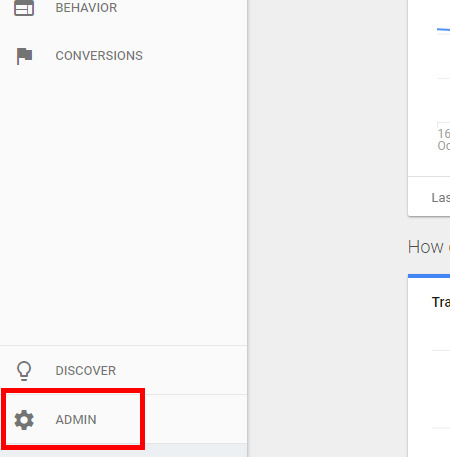
Go to 'Admin' bottom left of main menu.
-
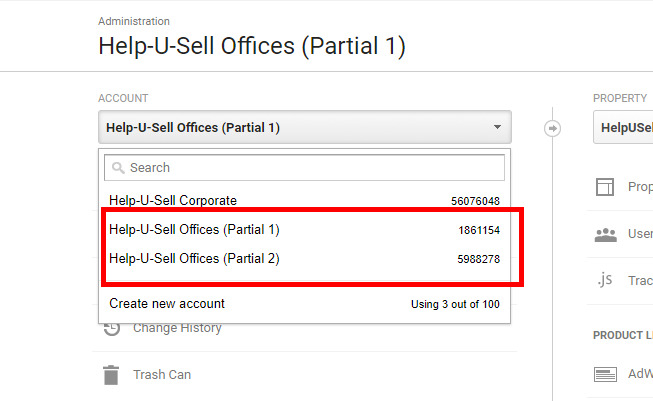
Offices are divided in two sections 'Partial 1' and 'Partial 2'. There is a 50 office limited per account. You will have to check both for available room if you are setting up a new office. If editing an existing you may have to check both to find the office view.
-
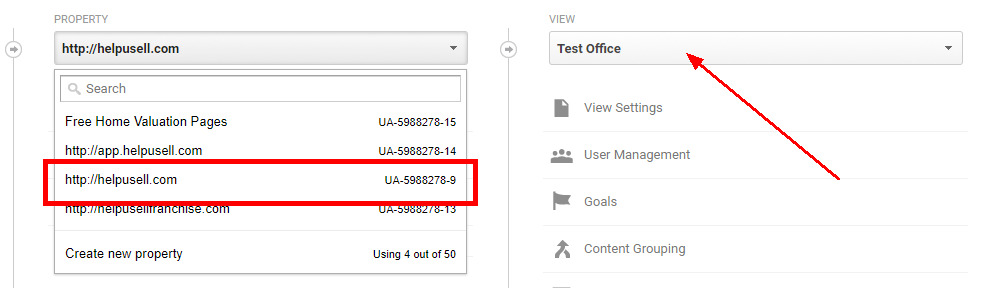
When using 'Partial 2' you will have to select 'HelpUSell.com' from the Property view also. Then locate the office in the 'View' section when editing an existing office.
-
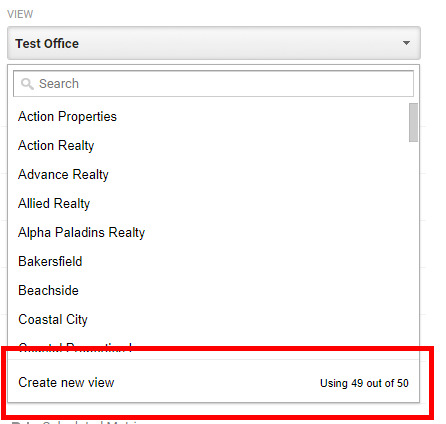
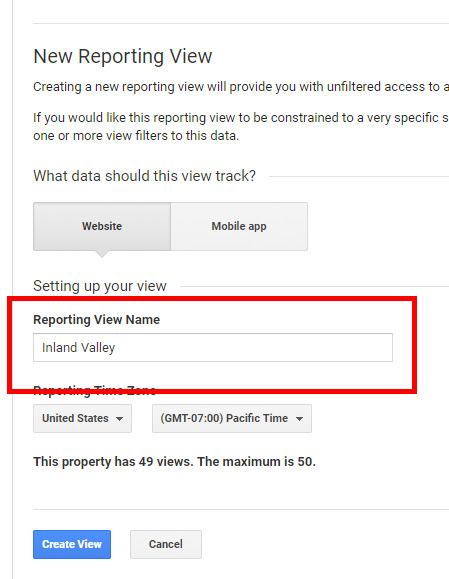
Adding a new office click on the 'Create New View' option.
-
Enter the 'Report View Name', this will be the office name without 'Help-U-Sell' i.e. Inland Valley. Also, set the proper time zone based on the office location.
-
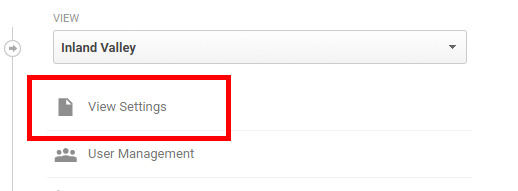
Once you created the view, you will be back at the previous screen with the new view selected. Click on 'View Settings'
-
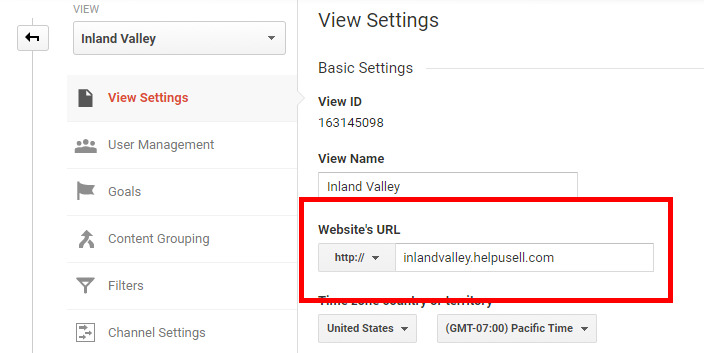
Edit the website URL to the correct office URL. Hit the 'Save' button.
-
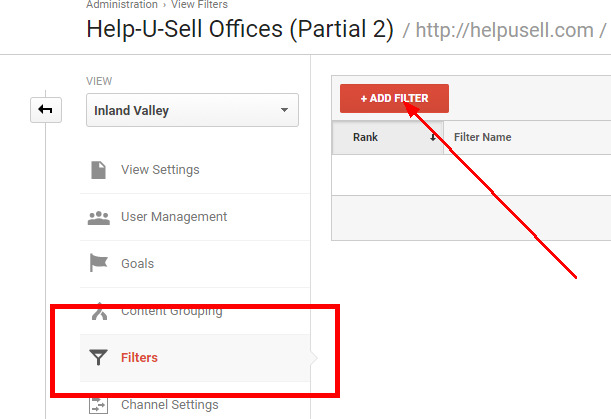
Next you will have to set the Filters. This ensures that only this office's traffic will display in the OMS.
Click 'Filters' menu item on the left menu. Then click Add Filter:
-
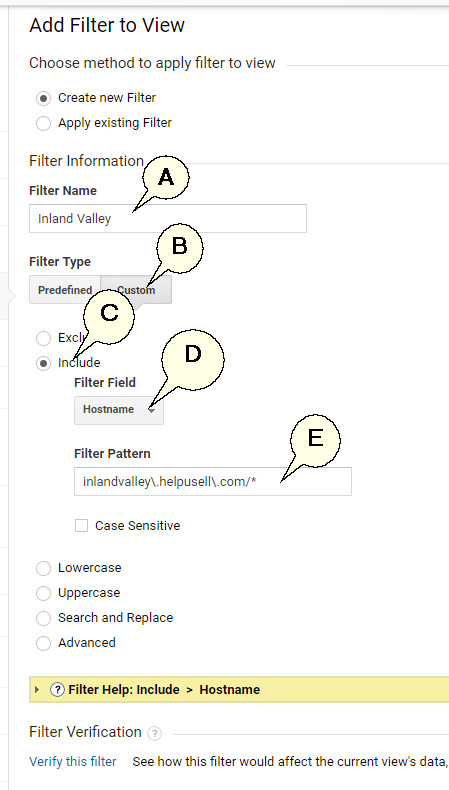
Use the Office Name as the 'Filter Name' (A).
-
Click on the Custom Tab (B).
-
Click the 'Include' option (C).
-
From the 'Filter Field' drop down, select 'Hostname' (D).
-
For filter pattern copy and paste this and change the office name out for the relevant subdomain section (E).
inlandvalley\.helpusell\.com/*
-
Make sure you Save
-
-
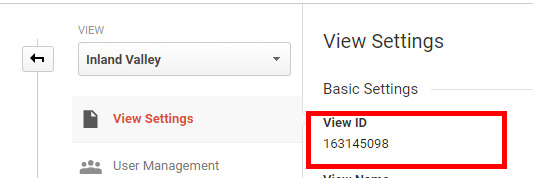
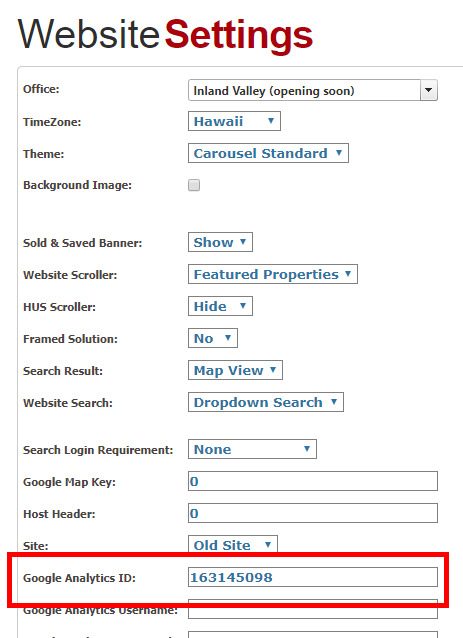
Copy the 'View ID' into the OMS under 'Website Settings' when logging in with Corporate Admin. Remember to Save.
-
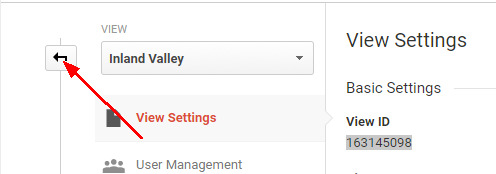
In Google Analytics click the 'back' icon to return to the Admin screen
-
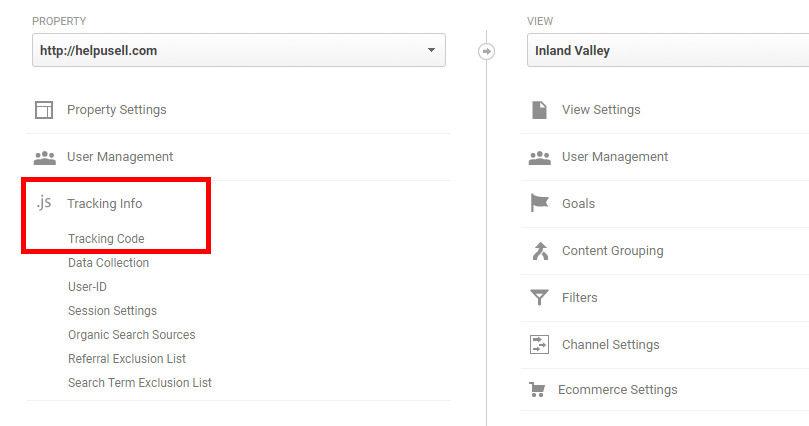
Click on Tracking Info and then Tracking Code.
-
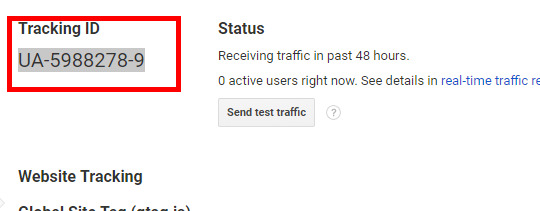
Copy the Tracking ID to WordPress
-
Log into the WordPress Admin for the Office you are copying the code for.
-
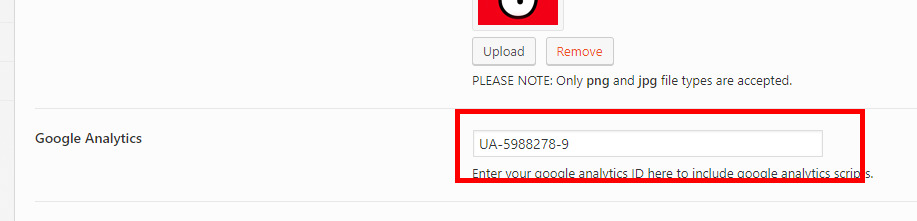
Go to Appearance then Theme Options
-
Add the copied UA code to the Google Analytics field
-
-
Remember to Save Changes